Included in All Access: one membership gives you this tool plus the full HTech NinjaTrader 8 suite.
See volume delta your way in NinjaTrader 8.
Cumulative Delta Plus plots the net difference between buying and selling volume in NinjaTrader 8, then lets you choose how that delta is drawn on the chart. Show each bar’s delta as a column above zero, split positive and negative around a zero line, or track the running cumulative delta as candlesticks. The candlestick view resets Daily, Weekly, or by Chart range to match the way you review a session.
Three ways to draw delta
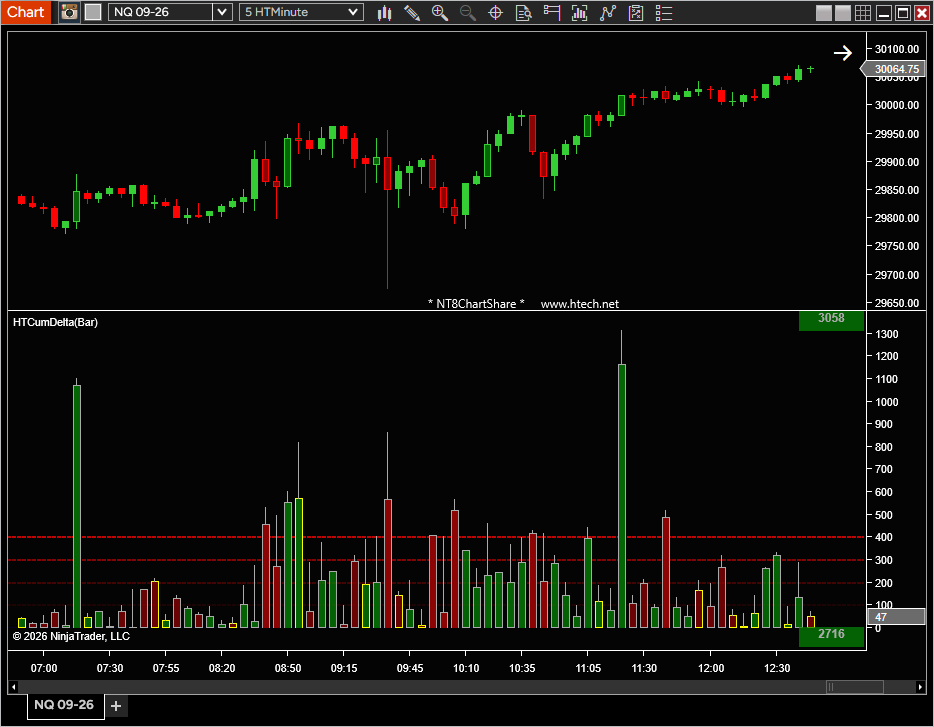 Per-bar, above zero
Each bar’s delta drawn as a column above zero, colored by side, with a right-axis magnitude marker.
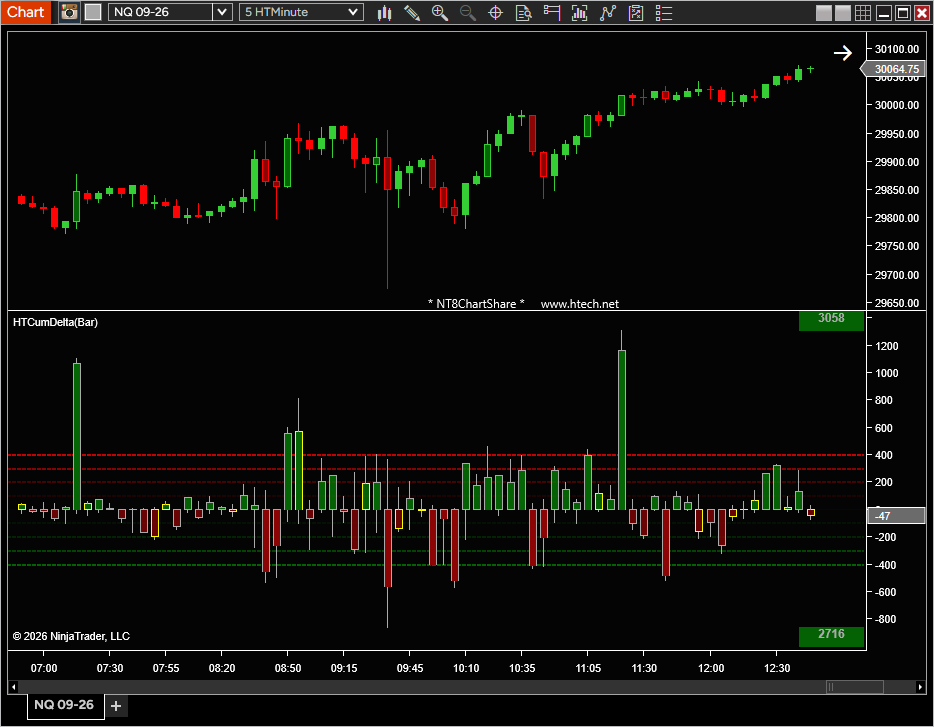 Zero-line histogram
Positive delta above the zero line and negative below it, so buying and selling pressure read at a glance. Yellow marks delta divergence, where price closes against the bar’s delta.
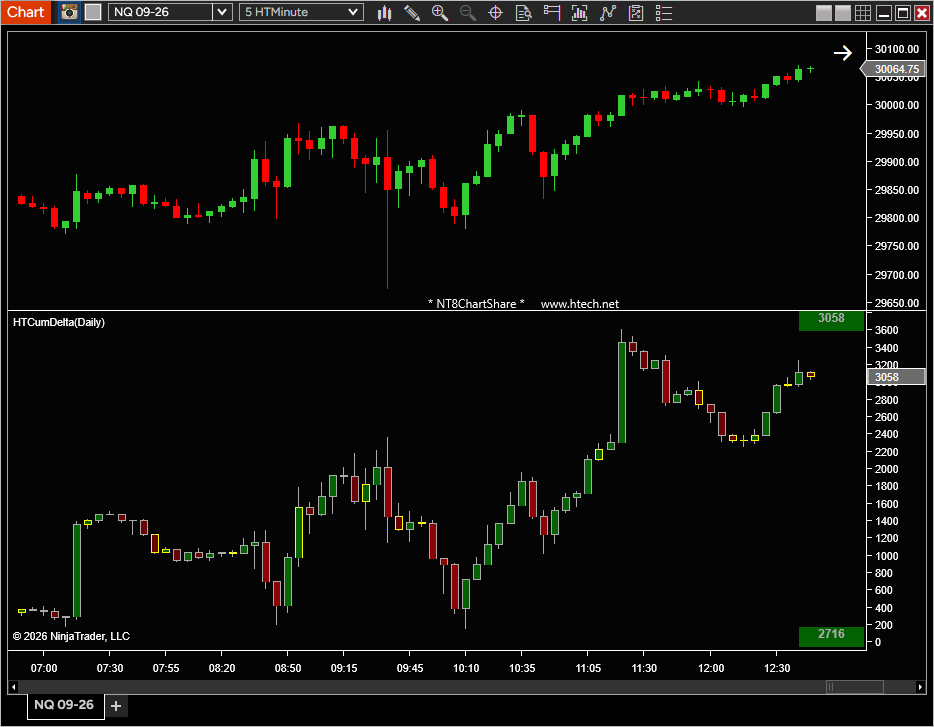 Cumulative candlesticks
The running cumulative delta drawn as open, high, low, close candles across the chart, just like price.
Reset to match the question
The cumulative candlestick view starts its running count where you choose:
Daily reset
Start each session fresh when you want to judge intraday buying and selling pressure on its own.
Weekly reset
Carry the delta view across multiple sessions when broader order-flow context matters.
Chart reset
Use the chart’s loaded range as the context for reviewing pressure over the bars in view.
Visible-range delta sum
Turn on the optional visible-range delta sum when the question is narrower than a full session. It totals delta for the bars currently on screen, quick context for a setup, a rotation, or a single trend leg. A second right-side readout shows cumulative delta through the last visible bar.
Common ways traders use it
Session review
Check whether net buying or selling pressure built through the trading day.
Divergence checks
Watch for price pushing one way while cumulative delta refuses to confirm the move.
Local analysis
Use the visible-range sum when the current chart area matters more than the whole session.
Why traders use Cumulative Delta Plus in NinjaTrader 8
Without Cumulative Delta Plus
- Read raw volume with no running tally of net buying versus selling pressure.
- Switch indicators or windows to see delta a different way.
- Rebuild session, multi-session, or chart-range context by hand.
With Cumulative Delta Plus
- See net delta build in one indicator: per bar, around a zero line, or as cumulative candlesticks.
- Reset the cumulative candlestick view Daily, Weekly, or by Chart range.
- Add the visible-range sum for quick context on the bars on screen.
Key features
- Three display styles: per-bar above zero, zero-line histogram, and cumulative-delta candlesticks.
- Daily, Weekly, and Chart reset modes in one NinjaTrader 8 indicator.
- Optional visible-range delta sum for the bars currently in view.
- Delta divergence marking for bars that close against their delta.
- Optional delta thresholds with guide lines and highlight colors.
- Volume or Percent delta styles.
- Right-axis magnitude marker tracking the developing bar.
- Directional green and red coloring for positive and negative delta.
What does cumulative delta show?
Cumulative Delta Plus shows the running sum of buy volume minus sell volume in NinjaTrader 8, so traders can see net order-flow pressure build, fade, or shift over time.
How many ways can it display delta?
Three: per-bar columns above zero, a zero-line histogram with positive up and negative down, and cumulative delta drawn as candlesticks.
Can the delta reset daily or weekly?
Yes. The cumulative candlestick view in Cumulative Delta Plus resets Daily, Weekly, or by Chart range, so one NinjaTrader 8 indicator covers session, multi-session, and chart-range review.
Does it backfill historical delta?
That depends on NinjaTrader’s Tick Replay setting. Without Tick Replay, Cumulative Delta Plus starts accumulating from the point the chart loads. With Tick Replay enabled, it backfills delta for the configured Load Days Back window.
Requirements: Windows and NinjaTrader 8.1.2.1 or later.
My Account Downloads
After purchase or access, your available HTech downloads are located in your My Account page. Log in with the same account used for the purchase, then open the Downloads tab in My Account.
Installer Passwords
Most individual HTech products are delivered as password-protected self-installing files. The required installer password is included in your order email. If your order includes multiple products, that email may include multiple product passwords.
Please keep your order email in a safe place for future updates, reinstalls, or computer changes.
Machine ID Registration
All HTech NinjaTrader products require Machine ID registration before they can be used, including free products. Log in to My Account and use the NT8 Registration menu item to register your NinjaTrader Machine ID before starting NinjaTrader with the product installed.
Email Registration
The first time you run an HTech NinjaTrader product, you may be asked to enter your email address. Use the same email address registered on your HTech website account. This is normally a one-time step and should not be required again for regular product updates.
Installation Steps
Close NinjaTrader before installing or updating HTech products. Download your product installer, run the downloaded file, follow the installation prompts, and enter the installer password from your order email when prompted.
After installation, start NinjaTrader. If a Trusted Source message appears, accept it. After accepting the Trusted Source message, restart NinjaTrader once more.
Updates and Reinstalls
Do not uninstall previous versions before updating. HTech installers are designed to install over the existing version. After installing the update, open NinjaTrader and the product will be updated.
Individual product purchases include one year of free updates from the date of purchase. During the active update period, available updates can be downloaded from your My Account page.
All Access
All Access uses a separate installer and access model. Eligible HTech NinjaTrader tools are available while the All Access membership is active. If you already own individual HTech products, those separate purchases remain available under their own license terms. When All Access expires, All Access-only products expire and downloads/access end unless a new membership is purchased.
TradeStation
TradeStation products are discontinued and are no longer available for new purchases. Existing customers may continue using downloads they already purchased or licensed when available, but future updates are not planned and support may be limited.
Help
If you have trouble finding your download, locating your installer password, registering your Machine ID, or installing a product, please contact HTech support.
Individual Products
Individual HTech product purchases include a non-expiring license for the purchased product and one year of free updates from the date of purchase. After the update period ends, the product does not expire. You may continue using the version you already own, but future updates are not included unless a new update period, upgrade, or replacement license is purchased.
All Access
All Access is an annual access membership for eligible HTech NinjaTrader tools. It does not auto-renew and does not automatically bill again. When an All Access membership expires, All Access-only products expire unless you choose to purchase a new membership. Any individual products you purchased separately remain available under their own license terms.
Registration
HTech products require registration before they can be used, including free products. Registration may require your NinjaTrader Machine ID or other licensing information depending on the product. Please review the instructions provided after purchase or access for download, installation, and registration details.
License Use
Licenses are for the original purchaser only and may not be shared, transferred, resold, distributed, or used by multiple customers.
Refunds
HTech products are digital software products. Once a product has been purchased, downloaded, licensed, or accessed, the sale is final and non-refundable.
Support
Support is available through the HTech Discord support channel, Microsoft Teams when available, and direct support contact when needed. HTech makes a reasonable effort to respond within one business day, but support may be limited for third-party platform issues, computer setup, brokerage connections, discontinued products, or platform changes outside HTech’s control.
TradeStation
TradeStation products are discontinued and are no longer available for new purchases. Existing customers may continue using what they already purchased or licensed, but future updates are not planned and support may be limited.
Full Terms
By purchasing, downloading, installing, accessing, or using this product, you agree to HTech’s current
Terms and Conditions, Risk Disclosure, Disclaimer, Privacy Policy, and product licensing requirements..
Frequently Asked Support Questions
Feature Requests (login required)
Have an idea that would make this tool better? Post it here, every idea is welcome!
Vote for the ideas you would like built: click the ▲ box (click again to remove your vote).
Visit the Customer Feature Requests page to see and vote on requests for every product.
Log in to post a feature request or vote.



Reviews (login required to post)
Trading with this tool? Share your experience, every review helps fellow traders!
Visit the Customer Reviews page to read reviews for every product.
There are no reviews yet.