Free with All Access or any HTech purchase: click here to explore the complete NT8 suite of tools.
Launch NinjaTrader 8 and log in with one double-click.
Auto Login is a small Windows utility for NinjaTrader 8 traders. NinjaTrader remembers your username but never your password, so each session can begin with a manual lookup, entry, and login.
Instead, double-click Auto Login. The utility opens NinjaTrader 8, enters your saved password in the official login window, and submits it for you.
Double-click NT8Login.exe, not NinjaTrader.
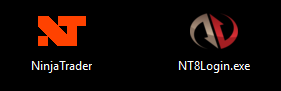
First, NT8Login.exe launches NinjaTrader, waits for the official login window, fills your saved password, and submits it for you.
Your saved password stays local and encrypted.
Local encryption
Windows protects the saved password for your account before Auto Login uses it.
No plain text
The saved password is not left on your PC in readable text for someone to find, copy, or paste.
Never sent online
In addition, Auto Login uses no cloud account, web service, or API, so your saved password never leaves your PC.
What one double-click actually does
1. Double-click
First, start Auto Login from Windows like any normal desktop shortcut.
2. Open NT8
Next, Auto Login launches NinjaTrader 8, or brings it forward if it is already running.
3. Fill login
Then, the utility enters your encrypted password in the official login window.
4. Submit and exit
Finally, Auto Login submits the login and closes once you are in or it times out.
Built for control, not background automation
Drives the real login window
Auto Login controls NinjaTrader’s own login window directly, with no screen-scraping or guessed on-screen clicks.
Set once, change anytime
On first run, enter your password; later, update it through Auto Login’s settings whenever it changes.
You are never forced to auto-login
For control, hold Ctrl as Auto Login starts. It stops instead, so you can review your setup or change the password.
Nothing left running
After you are logged in or a timeout occurs, Auto Login closes itself, leaving no background service or resident process.
Key features
- Launches NinjaTrader 8 and completes the login automatically from a single double-click.
- Drives NinjaTrader’s official login window directly, then enters and submits your saved password.
- Encrypts your password with Windows security tied to your user account, never in plain text.
- Runs entirely on your PC, with no web service, API, or internet transmission.
- Masks the saved password by default, with an eye toggle to reveal and verify it.
- Hold Ctrl while launching to stop the auto-login, change your password, or review your setup.
- Detects when NinjaTrader is already open, brings that window forward, and closes itself when done.
Common uses
- Getting into NinjaTrader 8 fast at the start of each trading session.
- Skipping the manual password step on every routine platform startup.
- Restarting NinjaTrader often during setup, testing, or support without the login friction.
Why traders use it
Without Auto Login
- Open NinjaTrader, wait for the login window, and look up your password every session.
- Type or paste the password by hand before you can start trading.
- Repeat the whole login each time you restart during setup, testing, or support.
With Auto Login
- Double-click one shortcut and it opens NinjaTrader and fills the official login window for you.
- Your password is entered from Windows-encrypted local storage, never typed or sent online.
- Hold Ctrl on launch to stop and change it, and nothing stays running afterward.
Free for HTech customers: Auto Login comes with All Access and with any other HTech purchase.
What does Auto Login do?
Auto Login launches NinjaTrader 8 and types your password into the official NinjaTrader login window, so you can start the platform with one double-click.
Is my password safe?
Yes. Windows’ built-in security encrypts it for your Windows user account; it is never stored as plain text or sent over the internet.
How do I change my saved password?
Hold Ctrl while launching Auto Login. This stops the automatic login, so you can enter a new password or review your setup.
What if NinjaTrader is already running?
NinjaTrader allows only one instance, so Auto Login brings the existing window to the front and exits.
What if it cannot log me in?
If Auto Login cannot complete the login in time, it shows a simple pop-up error before closing.
Requirements: Windows and NinjaTrader 8.1.2.1 or later.
My Account Downloads
After purchase or access, your available HTech downloads are located in your My Account page. Log in with the same account used for the purchase, then open the Downloads tab in My Account.
Installer Passwords
Most individual HTech products are delivered as password-protected self-installing files. The required installer password is included in your order email. If your order includes multiple products, that email may include multiple product passwords.
Please keep your order email in a safe place for future updates, reinstalls, or computer changes.
Machine ID Registration
All HTech NinjaTrader products require Machine ID registration before they can be used, including free products. Log in to My Account and use the NT8 Registration menu item to register your NinjaTrader Machine ID before starting NinjaTrader with the product installed.
Email Registration
The first time you run an HTech NinjaTrader product, you may be asked to enter your email address. Use the same email address registered on your HTech website account. This is normally a one-time step and should not be required again for regular product updates.
Installation Steps
Close NinjaTrader before installing or updating HTech products. Download your product installer, run the downloaded file, follow the installation prompts, and enter the installer password from your order email when prompted.
After installation, start NinjaTrader. If a Trusted Source message appears, accept it. After accepting the Trusted Source message, restart NinjaTrader once more.
Updates and Reinstalls
Do not uninstall previous versions before updating. HTech installers are designed to install over the existing version. After installing the update, open NinjaTrader and the product will be updated.
Individual product purchases include one year of free updates from the date of purchase. During the active update period, available updates can be downloaded from your My Account page.
All Access
All Access uses a separate installer and access model. Eligible HTech NinjaTrader tools are available while the All Access membership is active. If you already own individual HTech products, those separate purchases remain available under their own license terms. When All Access expires, All Access-only products expire and downloads/access end unless a new membership is purchased.
TradeStation
TradeStation products are discontinued and are no longer available for new purchases. Existing customers may continue using downloads they already purchased or licensed when available, but future updates are not planned and support may be limited.
Help
If you have trouble finding your download, locating your installer password, registering your Machine ID, or installing a product, please contact HTech support.
Individual Products
Individual HTech product purchases include a non-expiring license for the purchased product and one year of free updates from the date of purchase. After the update period ends, the product does not expire. You may continue using the version you already own, but future updates are not included unless a new update period, upgrade, or replacement license is purchased.
All Access
All Access is an annual access membership for eligible HTech NinjaTrader tools. It does not auto-renew and does not automatically bill again. When an All Access membership expires, All Access-only products expire unless you choose to purchase a new membership. Any individual products you purchased separately remain available under their own license terms.
Registration
HTech products require registration before they can be used, including free products. Registration may require your NinjaTrader Machine ID or other licensing information depending on the product. Please review the instructions provided after purchase or access for download, installation, and registration details.
License Use
Licenses are for the original purchaser only and may not be shared, transferred, resold, distributed, or used by multiple customers.
Refunds
HTech products are digital software products. Once a product has been purchased, downloaded, licensed, or accessed, the sale is final and non-refundable.
Support
Support is available through the HTech Discord support channel, Microsoft Teams when available, and direct support contact when needed. HTech makes a reasonable effort to respond within one business day, but support may be limited for third-party platform issues, computer setup, brokerage connections, discontinued products, or platform changes outside HTech’s control.
TradeStation
TradeStation products are discontinued and are no longer available for new purchases. Existing customers may continue using what they already purchased or licensed, but future updates are not planned and support may be limited.
Full Terms
By purchasing, downloading, installing, accessing, or using this product, you agree to HTech’s current
Terms and Conditions, Risk Disclosure, Disclaimer, Privacy Policy, and product licensing requirements..
Frequently Asked Support Questions
Feature Requests (login required)
Have an idea that would make this tool better? Post it here, every idea is welcome!
Vote for the ideas you would like built: click the ▲ box (click again to remove your vote).
Visit the Customer Feature Requests page to see and vote on requests for every product.
Log in to post a feature request or vote.



Reviews (login required to post)
Trading with this tool? Share your experience, every review helps fellow traders!
Visit the Customer Reviews page to read reviews for every product.
There are no reviews yet.