A trading workspace rarely stays neat for long. Charts, SuperDOMs, and the Control Center get dragged aside, resized for a quick task, and left just far enough out of place that rebuilding the layout becomes another distraction.
Snap Grid turns that fussy border-dragging into a direct action. Choose the destination from the title bar of the window you are arranging, preview the space it will occupy, and release to place it.
It is a small NinjaTrader utility with an everyday payoff: a clean, repeatable desktop across the monitor you are working on, without guessing at proportions or covering the taskbar.
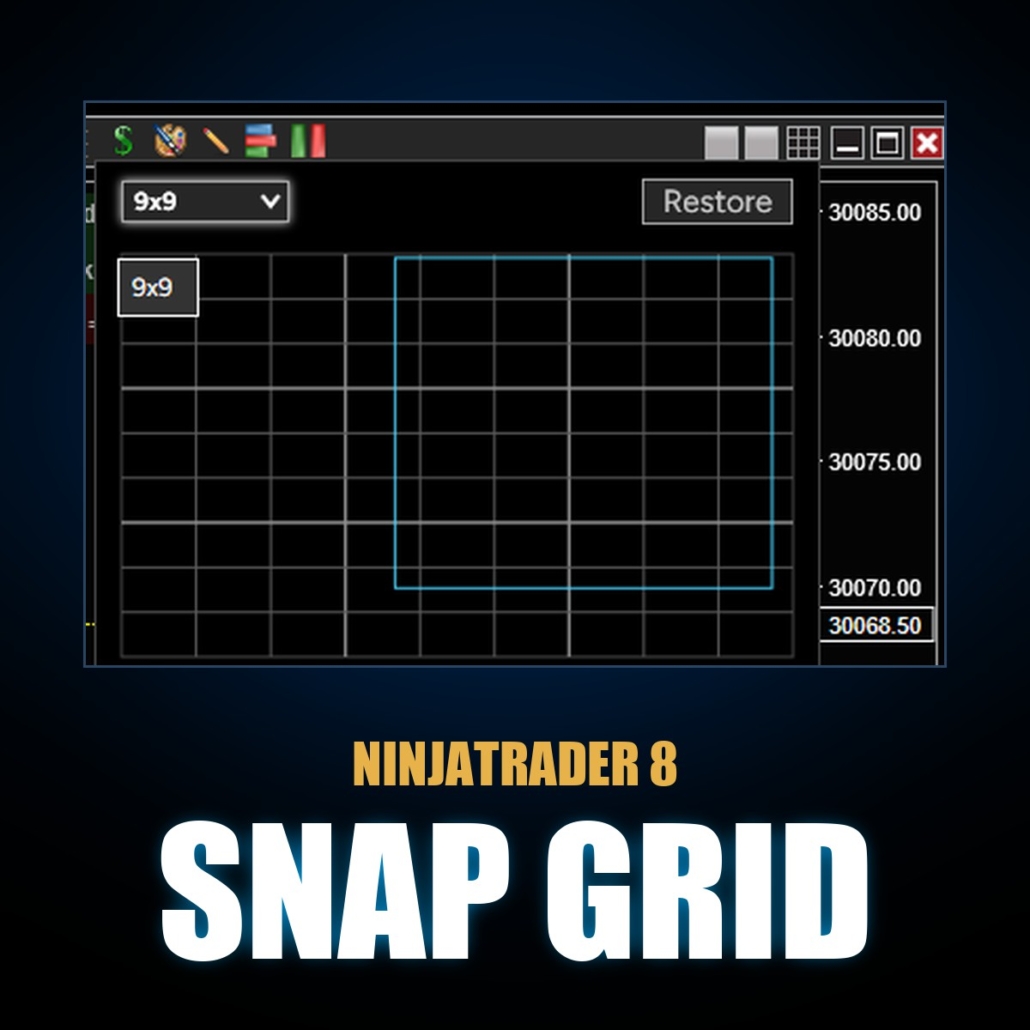
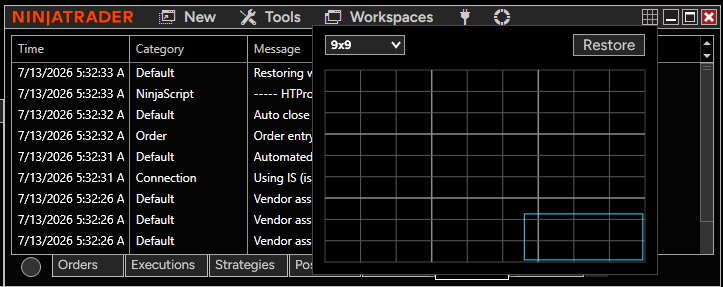
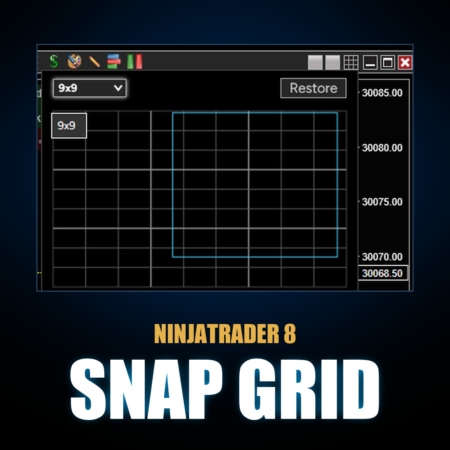
Real NinjaTrader Control Center capture. The picker shows the 9×9 grid, current-window outline, and Restore button in a supported non-chart window.
One simple layout action
Open the pickerClick the grid button inserted immediately beside Minimize on the active NinjaTrader window.
Drag the destinationChoose one cell or a larger span of cells, while the desktop preview marks the target area.
Release to place itThe window snaps into the chosen region. Restore returns that window to its position before the last snap.
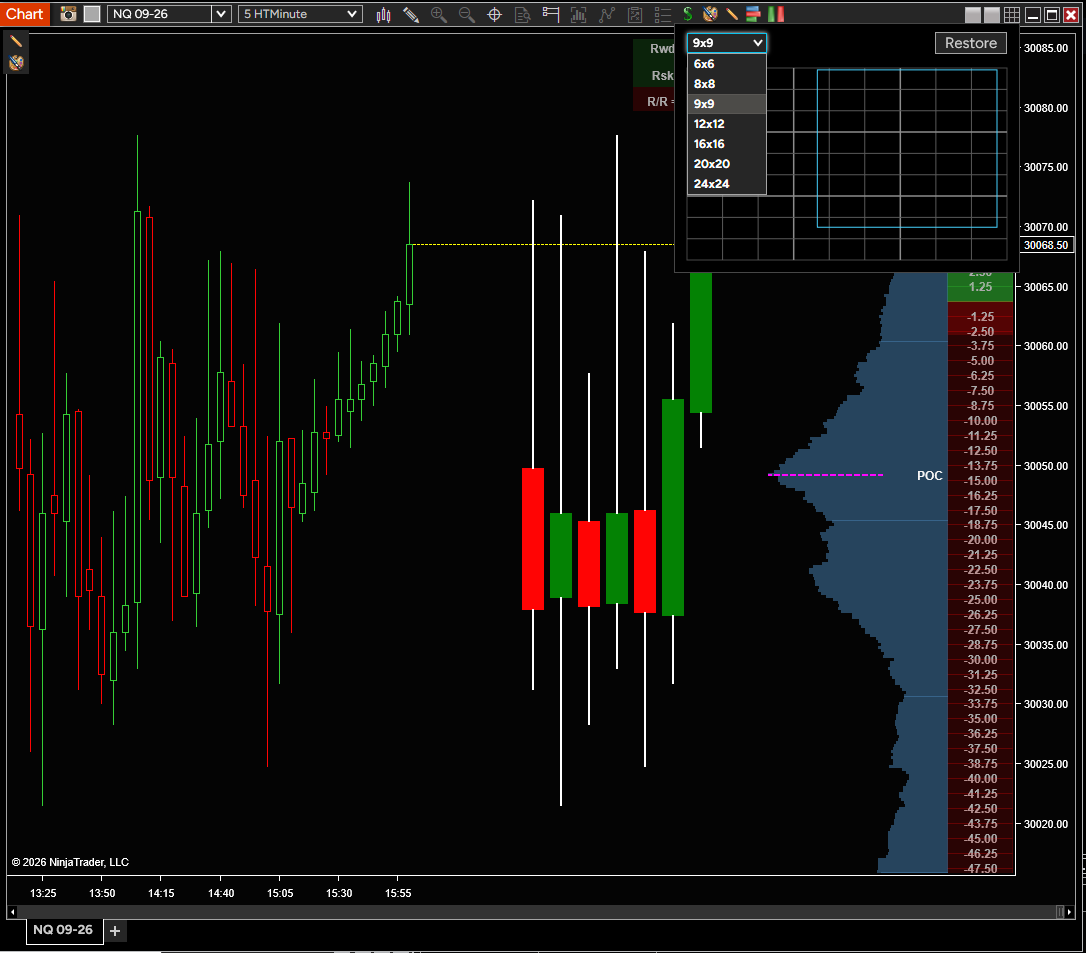
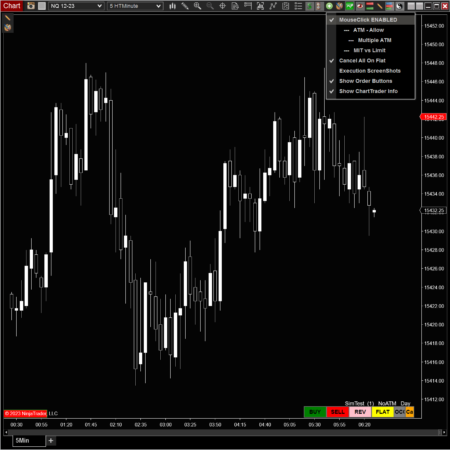
Real NinjaTrader Chart capture. The expanded menu shows the 6×6, 8×8, 9×9, 12×12, 16×16, 20×20, and 24×24 choices, plus the current-window outline and Restore button.
When the workspace drifts
Resize windows by hand and try to judge their proportions.
Rebuild a familiar layout after tools have slowly moved around.
Risk using space that should stay clear for the taskbar.
When Snap Grid is there
Pick a zone from the title bar of the window you are moving.
See the destination before the window is placed.
Use Restore to reverse the last Snap Grid move for that window.
Designed around the desktop you are actually using
Grid sizes you can chooseThe picker offers 6×6, 8×8, 9×9, 12×12, 16×16, 20×20, and 24×24 layouts. It starts at 9×9.
Live target previewDragging across the picker shows a translucent overlay on the desktop before the selected window is moved.
Current position in viewThe picker outlines the active window’s present location, making the change easy to compare before you choose a new zone.
Per-monitor work areaSnapping uses the active window’s nearest monitor work area, keeping the target inside usable desktop space.
A quiet workflow utility: Snap Grid does not produce a signal, analyze a chart, or place a trade. It simply makes a multi-window NinjaTrader desktop faster to arrange and easier to restore.
What does Snap Grid do?
It adds a grid button beside Minimize on supported NinjaTrader windows. Choose a grid zone and the active window snaps to that part of the monitor.
Can I make a window larger than one grid cell?
Yes. Drag across a span of cells in the picker to select a larger target region.
What grid sizes are available?
The picker supports 6×6, 8×8, 9×9, 12×12, 16×16, 20×20, and 24×24 layouts. The initial default is 9×9.
What if I do not like the last placement?
Select Restore in the picker to return the active window to the position it had before its last Snap Grid move.
Which NinjaTrader windows can use it?
The tested window types are Control Center, Chart, NinjaScript Editor, NinjaScript Output, and SuperDOM. Snap Grid adds its button when a compatible window exposes the standard caption controls.
Requirements: Windows and NinjaTrader 8.1.2.1 or later.
Coming Soon!
My Account Downloads
After purchase or access, your available HTech downloads are located in your My Account page. Log in with the same account used for the purchase, then open the Downloads tab in My Account.
Installer Passwords
Most individual HTech products are delivered as password-protected self-installing files. The required installer password is included in your order email. If your order includes multiple products, that email may include multiple product passwords.
Please keep your order email in a safe place for future updates, reinstalls, or computer changes.
Machine ID Registration
All HTech NinjaTrader products require Machine ID registration before they can be used, including free products. Log in to My Account and use the NT8 Registration menu item to register your NinjaTrader Machine ID before starting NinjaTrader with the product installed.
Email Registration
The first time you run an HTech NinjaTrader product, you may be asked to enter your email address. Use the same email address registered on your HTech website account. This is normally a one-time step and should not be required again for regular product updates.
Installation Steps
Close NinjaTrader before installing or updating HTech products. Download your product installer, run the downloaded file, follow the installation prompts, and enter the installer password from your order email when prompted.
After installation, start NinjaTrader. If a Trusted Source message appears, accept it. After accepting the Trusted Source message, restart NinjaTrader once more.
Updates and Reinstalls
Do not uninstall previous versions before updating. HTech installers are designed to install over the existing version. After installing the update, open NinjaTrader and the product will be updated.
Individual product purchases include one year of free updates from the date of purchase. During the active update period, available updates can be downloaded from your My Account page.
All Access
All Access uses a separate installer and access model. Eligible HTech NinjaTrader tools are available while the All Access membership is active. If you already own individual HTech products, those separate purchases remain available under their own license terms. When All Access expires, All Access-only products expire and downloads/access end unless a new membership is purchased.
TradeStation
TradeStation products are discontinued and are no longer available for new purchases. Existing customers may continue using downloads they already purchased or licensed when available, but future updates are not planned and support may be limited.
Help
If you have trouble finding your download, locating your installer password, registering your Machine ID, or installing a product, please contact HTech support.
Individual Products
Individual HTech product purchases include a non-expiring license for the purchased product and one year of free updates from the date of purchase. After the update period ends, the product does not expire. You may continue using the version you already own, but future updates are not included unless a new update period, upgrade, or replacement license is purchased.
All Access
All Access is an annual access membership for eligible HTech NinjaTrader tools. It does not auto-renew and does not automatically bill again. When an All Access membership expires, All Access-only products expire unless you choose to purchase a new membership. Any individual products you purchased separately remain available under their own license terms.
Registration
HTech products require registration before they can be used, including free products. Registration may require your NinjaTrader Machine ID or other licensing information depending on the product. Please review the instructions provided after purchase or access for download, installation, and registration details.
License Use
Licenses are for the original purchaser only and may not be shared, transferred, resold, distributed, or used by multiple customers.
Refunds
HTech products are digital software products. Once a product has been purchased, downloaded, licensed, or accessed, the sale is final and non-refundable.
Support
Support is available through the HTech Discord support channel, Microsoft Teams when available, and direct support contact when needed. HTech makes a reasonable effort to respond within one business day, but support may be limited for third-party platform issues, computer setup, brokerage connections, discontinued products, or platform changes outside HTech’s control.
TradeStation
TradeStation products are discontinued and are no longer available for new purchases. Existing customers may continue using what they already purchased or licensed, but future updates are not planned and support may be limited.
Have an idea that would make this tool better? Post it here, every idea is welcome!
Vote for the ideas you would like built: click the ▲ box (click again to remove your vote).
Visit the Customer Feature Requests page to see and vote on requests for every product.
COMPLETED
Requested by roger(verified owner) August 11, 2026
when ninja shuts down it doesnt remember which monitor you are on with your chart so each time you open it randomly puts your charts wherever it wants. would be great to add a feature to this that remember the monitor you are on when a grid is selected.
Official Response August 19, 2026
08/18/2026 Update: This shipped! Snap Grid now remembers which monitor each window belongs on and puts it back there after a NinjaTrader restart, on any mix of monitor resolutions and scaling. Click the gear in the Snap Grid popup and pick "Restore snapped windows" or "Restore all window positions" (it ships turned off so nothing changes unless you turn it on). Your grid size choice is also remembered now. Included in the current All Access download.
Thanks for the report, and good catch. What you are seeing is NinjaTrader itself, not Snap Grid. It happens with or without Snap Grid installed, and here is what is actually going on.
When NinjaTrader saves a workspace, each window is stored as nothing but a pair of raw screen coordinates and a size. You can see it yourself: open any workspace file in Documents\NinjaTrader 8\workspaces in Notepad and you will find entries like Location 462;834. There is no record anywhere of which monitor the window was on. When the workspace reopens, NinjaTrader converts those raw numbers back into window positions using a single scale factor for the whole desktop. On a setup like yours, a 2K monitor next to 1080p monitors, where the monitors do not share one Windows scaling percentage, or when Windows rearranges the desktop because a monitor was asleep or re-detected at startup, the same saved numbers now point at a different spot, often on a different monitor. NinjaTrader then just puts the window wherever the numbers land.
Three things help today: set every monitor to the same Windows scaling percentage (Settings > Display > Scale), always close NinjaTrader using the X on the Control Center so the workspace saves cleanly, and try not to let monitors sleep or get unplugged while NinjaTrader is still open.
As for the feature: I like it, and it is doable, but it is considerably more complex than it sounds. The plan is for Snap Grid to remember which monitor and which grid position every snapped window belongs to, and put each one back where you snapped it after NinjaTrader restarts. Snap Grid can identify monitors more reliably than NinjaTrader does, so it is a natural fit. The hard part is correctly matching each saved position to the right window when the workspace reopens, and that is the piece I will be working through.
A second improvement will ship along with it: Snap Grid will remember your grid size between sessions. Today it always starts back at the default grid; going forward it will open with whatever grid size you last used.
Watch this request for status updates.
Requested by
1 review for Snap Grid | NT8(login required to post)
Trading with this tool? Share your experience, every review helps fellow traders!
Visit the Customer Reviews page to read reviews for every product.
Rated 5 out of 5
roger –
i have a 4 monitor set up with different scaling and 2 of them 4k and 2 of the 1080p and it handles everything perfect. i can shut down nt8 once i have snapped monitors into place and clicked the gear icon to save snapped windows…. then can just forget about it and it opens up perfect every time i open that workspace. great great tool.



roger –
i have a 4 monitor set up with different scaling and 2 of them 4k and 2 of the 1080p and it handles everything perfect. i can shut down nt8 once i have snapped monitors into place and clicked the gear icon to save snapped windows…. then can just forget about it and it opens up perfect every time i open that workspace. great great tool.