An enhanced volume profile for any session type you trade
A time-based chart tells you where price went. It does not tell you where the trading actually happened. A volume profile turns the session on its side and measures how much volume traded at every price, so the prices the market kept coming back to stand out from the ones it passed straight through.
That is where the levels come from. The Point of Control is the price that traded the most volume, the session’s fairest price. The value area is the band around it, by default 70 percent of the session’s volume, where the bulk of the business got done. Its high and low edges are where the market stopped agreeing, which is why traders watch them when price comes back.
Volume Profile Sessions builds that profile for every session on your NinjaTrader 8 chart. Set it to daily, weekly, monthly, yearly, or contract, and build it from volume traded or time spent at each price. The current session develops as it trades while completed sessions keep their finished levels, so today has yesterday’s structure sitting right beside it.
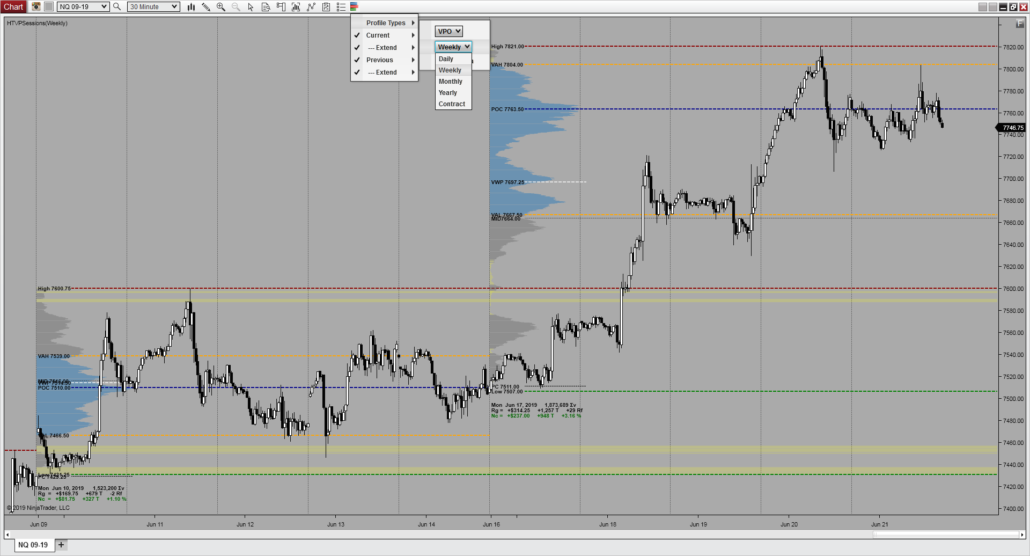
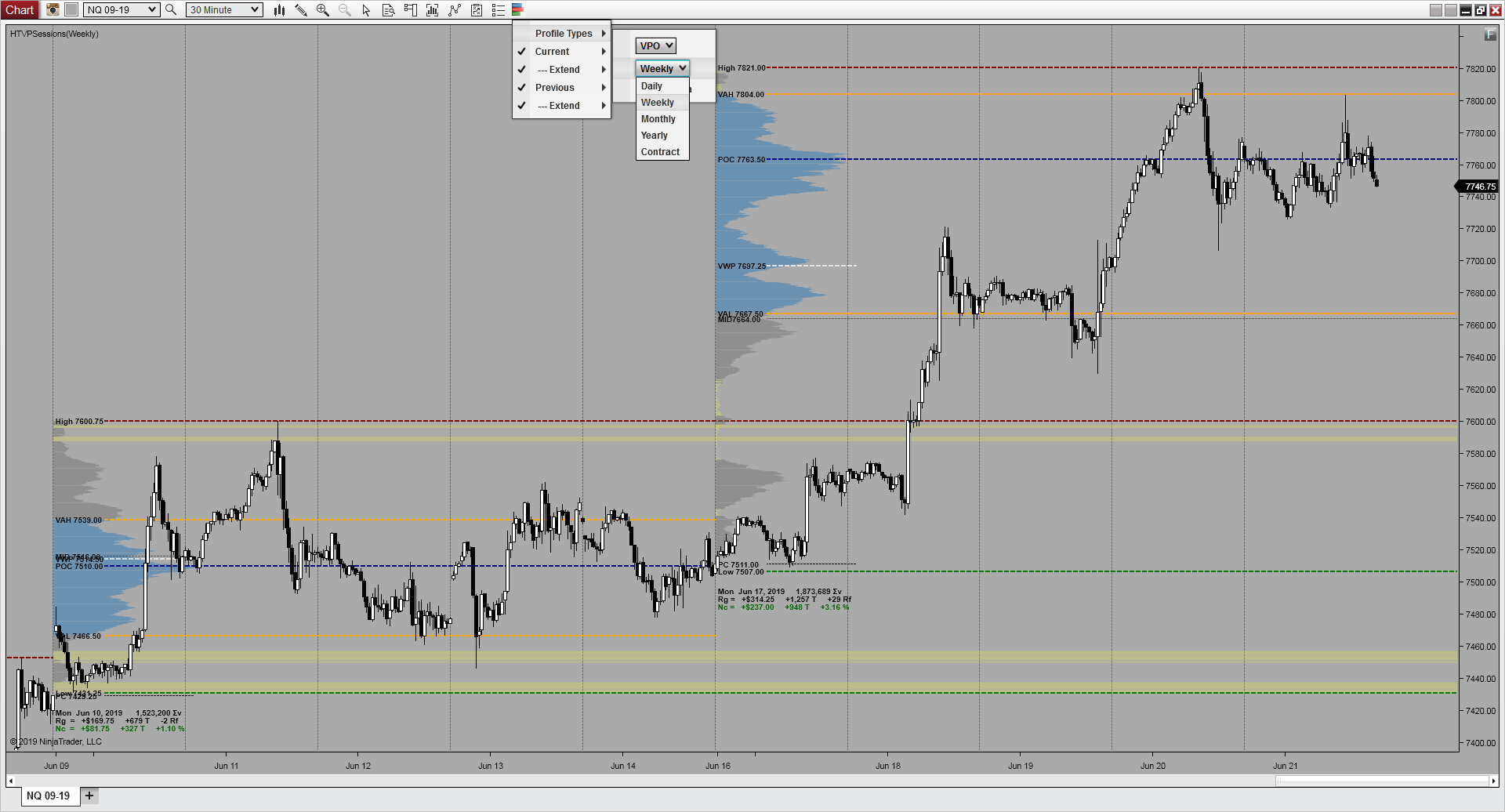
Real product image: a weekly session profile, with its histogram and levels drawn from the session’s traded volume.
Nothing to draw, nothing to decide
Sessions asks one thing of you: which session. After that it does the work. Every session on the chart gets its own profile as it trades, so today ends up sitting next to yesterday, and yesterday next to the day before, in the places they actually happened. There is no range to choose, no start and end to set, and nothing to redraw as the chart moves on.
That is why it is usually the first volume profile to put on a chart. Once the sessions are there, you are reading structure instead of building it.
Read the histogram, then the levels
The histogram shows relative activity at each price in the session. The Point of Control is the fattest row. Value Area, VAH, VAL, VWAP, previous close, profile high, low, and midpoint turn that profile into levels you can keep visible as price moves.
Value structure
POC, Value Area, VAH, and VAL show where the session’s activity concentrated.
Chart references
VWAP, previous close, session high, low, and midpoint keep it in price context.
Session summary
Start date, total volume, rotational factor, total range, and net change.
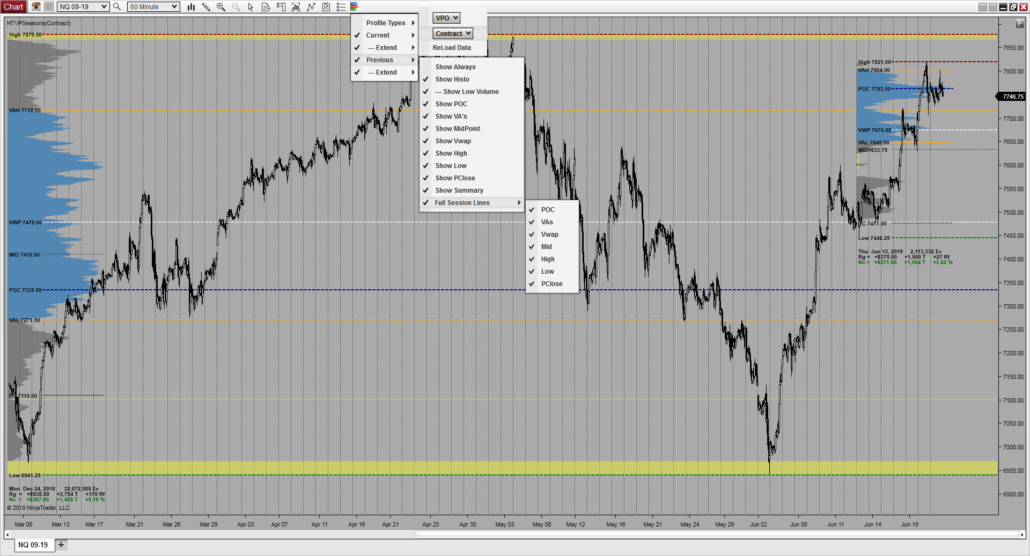
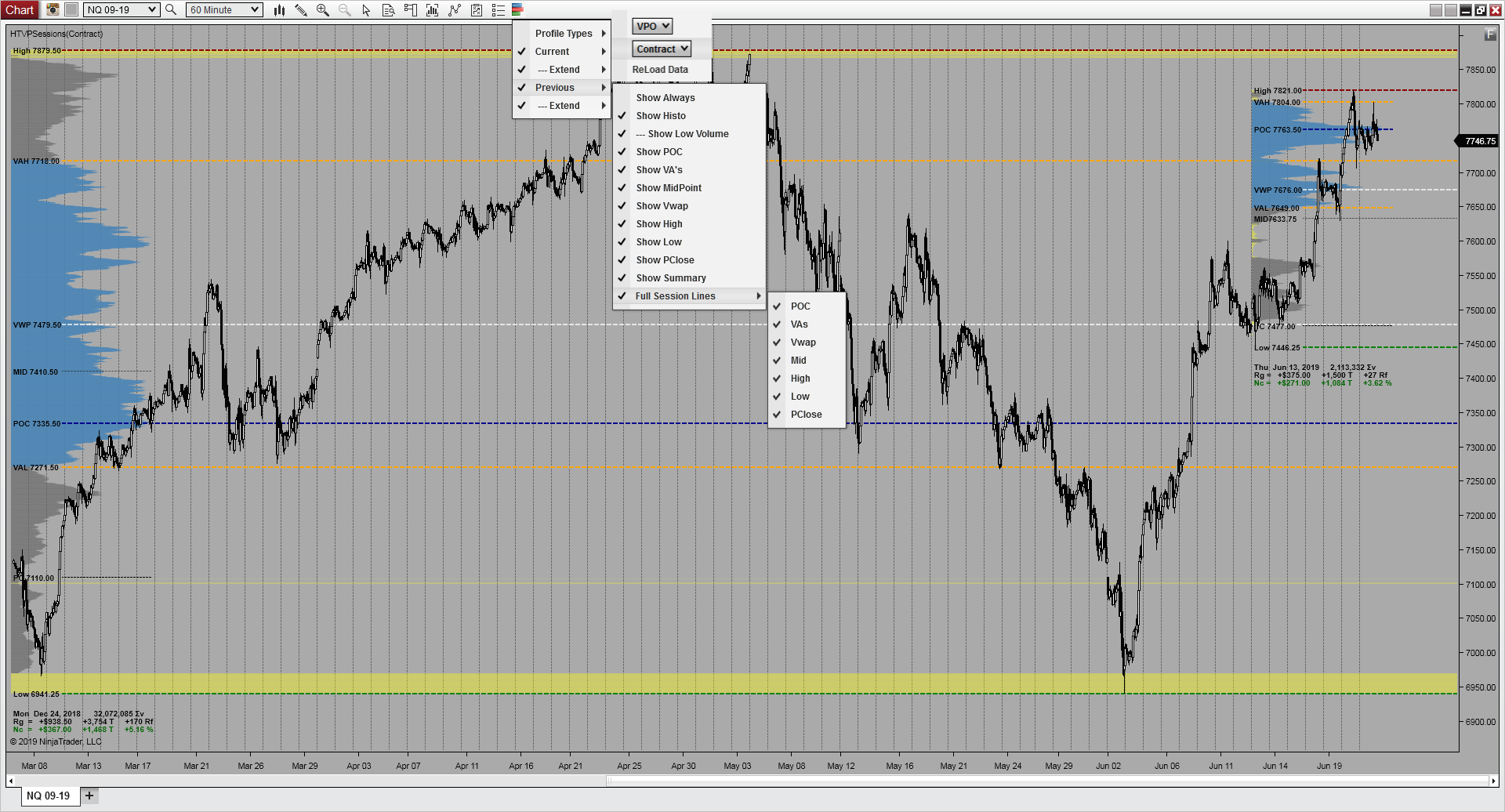
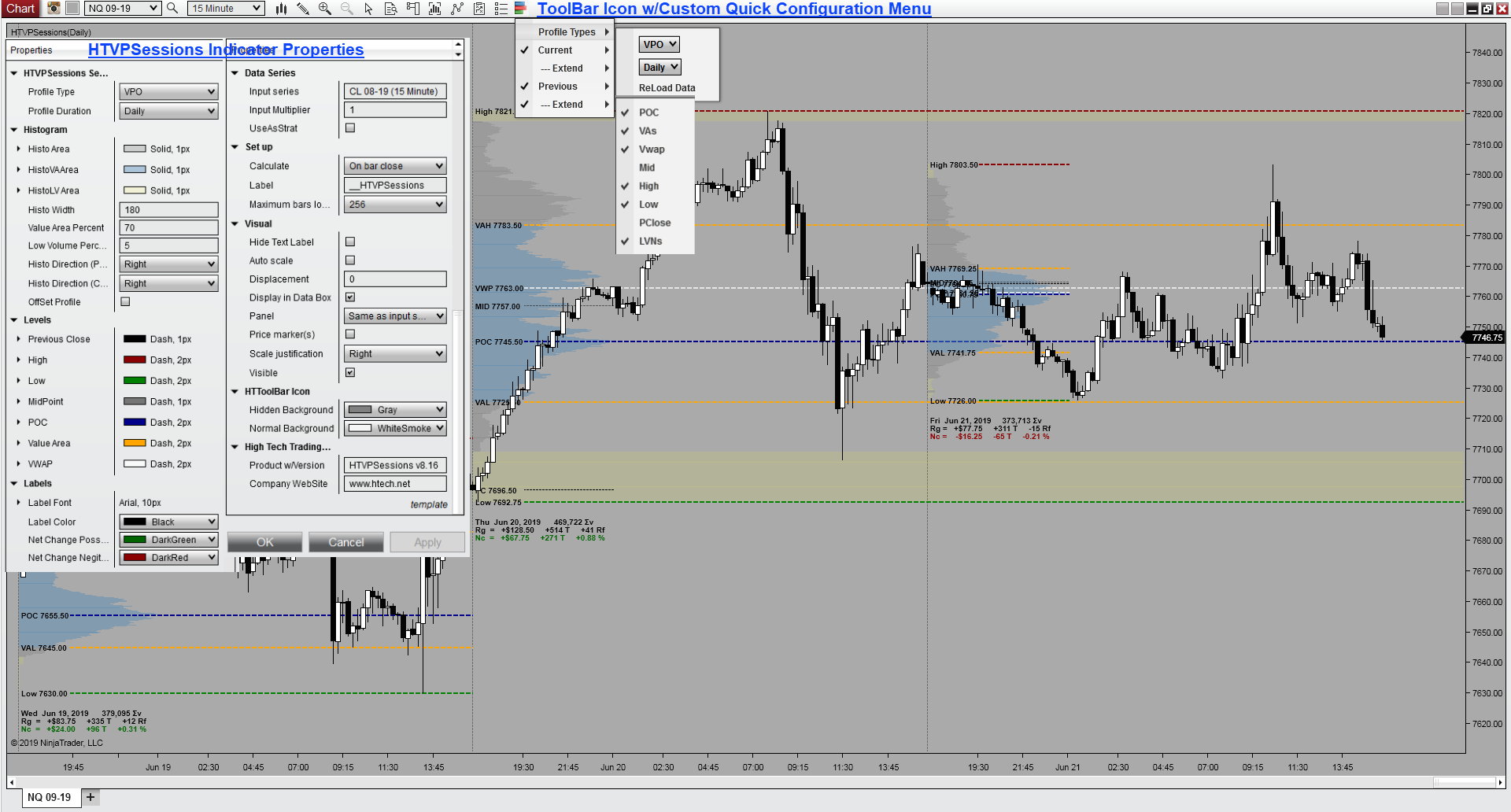
Real gallery image: set the session to contract and each contract gets profiled from rollover to rollover.Real gallery image: settings control profile type, session, placement, histogram treatment, and each level.
Show only the levels you use
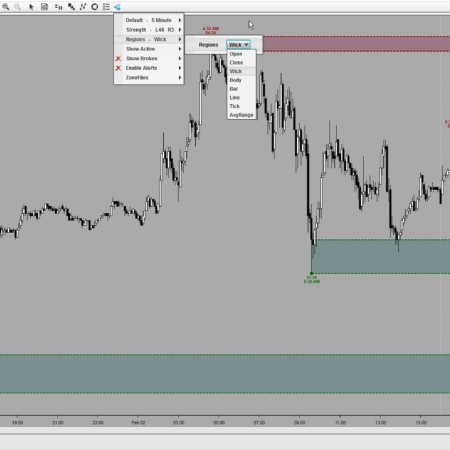
A chart toolbar icon puts the profile’s controls one click away. Reset every level off, then bring back just the references you trade from: a midpoint and a VWAP on one chart, the full profile on another. Middle-click the icon to hide the whole indicator at once. Levels can be held to the width of the histogram or extended across the session or the chart, and the current and previous profiles can be pinned in view so they never scroll out of sight on a zoomed-in chart.
What the toolbar changes without opening properties
Session type
Switch between daily, weekly, monthly, yearly, and contract.
Level visibility
Show or hide the histogram and each level on its own.
Level extension
Hold levels to the histogram or run them across the chart.
Make the profile fit the chart
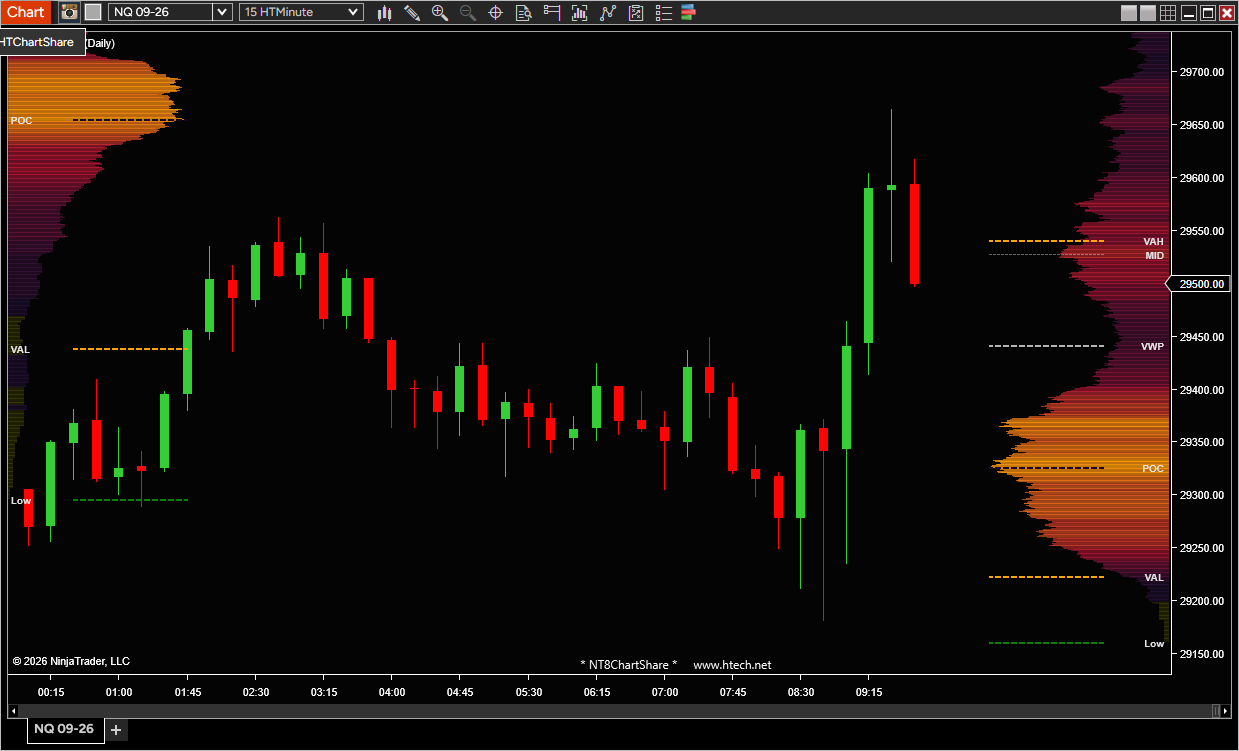
Place the developing profile at the left, at the right, or out at the far right edge where it stays clear of the sessions you are studying, and point completed profiles left or right from their own session. Set the histogram width, colors, and opacity, choose Classic, Heat, or HeatMap shading, and set the value area percentage. Low-volume areas can be shaded to mark the thin prices between them.
Sessions follows the trading hours template on your chart’s data series, and it can override it. You can run extended-hours bars and still profile the regular-hours session.
Real product image: heat shading carries the volume, the completed session sits at the left, and the developing session is parked at the far right edge, clear of it.
How Sessions differs from Composite
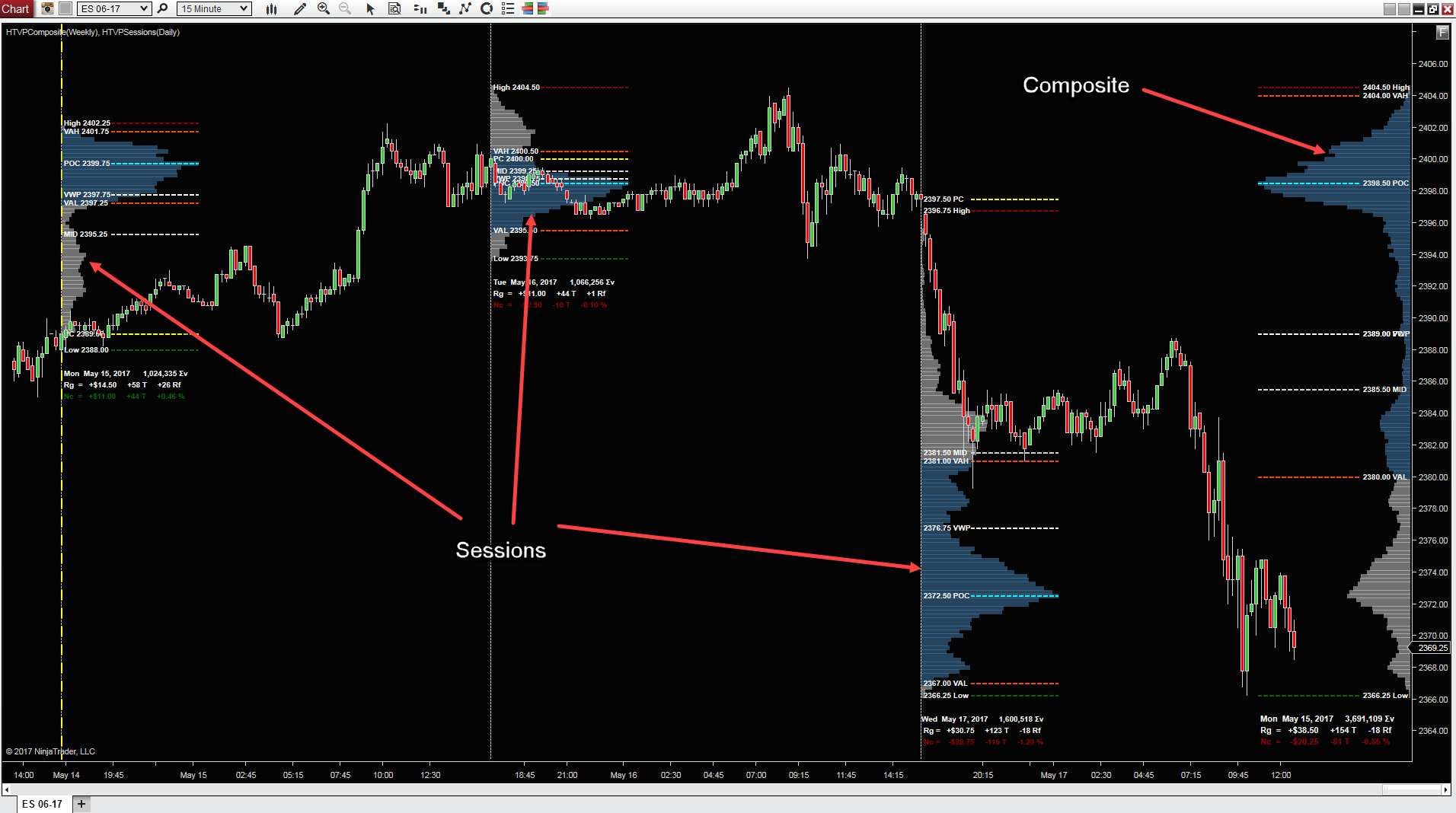
Both build the same profile from the same volume, and the difference is only where the range begins and ends. Sessions cuts the chart at each session boundary and profiles every session it finds, on its own. Composite ignores boundaries and profiles one continuous stretch that you dial in yourself. Plenty of traders run both: the sessions for structure day by day, a composite for the bigger picture sitting behind them.
Real product image, annotated: the three narrow profiles are Sessions, one for each day, placed where those days traded. The single wide profile on the right is Composite covering the whole week at once. Composite is a separate product; the image shows how the two read together on one chart.
Good fit for
Trading a session against its own prior sessions, daily, weekly, monthly, yearly, or contract.
Workflows built on POC, value area, VWAP, previous close, high, low, and midpoint levels.
Charts that need the developing profile and the completed one visible at the same time.
Without Sessions
Yesterday’s levels and today’s developing profile pile up in the same part of the chart.
Zoom in and the profile scrolls off screen, taking the levels you were watching with it.
Every level draws whether you use it or not, and the chart fills with lines.
With Sessions
Park the developing profile at the far right edge, clear of the sessions you are reading.
Pin the current and previous profiles in view no matter how far you zoom or scroll.
Switch every level off, then bring back only the references you trade from.
Can I show daily and weekly profiles at the same time?
One instance draws one session type. To see both, apply the indicator twice on the chart and set one to daily and the other to weekly.
Which trading session does it profile?
It follows the trading hours template on your chart’s data series, and it can override it, so you can run extended-hours bars and still profile the regular-hours session.
How is Composite different from Volume Profile Sessions?
Sessions profiles each daily, weekly, monthly, yearly, or contract session across the chart, on its own. Composite instead builds one profile over a continuous range you choose yourself. If you are new to volume profile, Sessions is the simpler place to start, because it needs no range decisions from you.
How is it different from Volume Profile Dynamic?
Dynamic is for profiles you draw yourself on the chart. Sessions profiles the session type you set, on its own, as each session trades.
Can I hide levels I do not use?
Yes. The toolbar can show or hide the histogram and each level on its own, and the levels you keep can be extended across the chart.
Requirements: Windows and NinjaTrader 8.1.2.1 or later.
Detailed Explaination of ALL Features, Properties, Set-Up, and Configuration:
Detailed Explaination of ALL Features, Properties, Set-Up, and Configuration:
This is a Very Basic Explanation of How Volume Profile is Calculated and Displayed
My Account Downloads
After purchase or access, your available HTech downloads are located in your My Account page. Log in with the same account used for the purchase, then open the Downloads tab in My Account.
Installer Passwords
Most individual HTech products are delivered as password-protected self-installing files. The required installer password is included in your order email. If your order includes multiple products, that email may include multiple product passwords.
Please keep your order email in a safe place for future updates, reinstalls, or computer changes.
Machine ID Registration
All HTech NinjaTrader products require Machine ID registration before they can be used, including free products. Log in to My Account and use the NT8 Registration menu item to register your NinjaTrader Machine ID before starting NinjaTrader with the product installed.
Email Registration
The first time you run an HTech NinjaTrader product, you may be asked to enter your email address. Use the same email address registered on your HTech website account. This is normally a one-time step and should not be required again for regular product updates.
Installation Steps
Close NinjaTrader before installing or updating HTech products. Download your product installer, run the downloaded file, follow the installation prompts, and enter the installer password from your order email when prompted.
After installation, start NinjaTrader. If a Trusted Source message appears, accept it. After accepting the Trusted Source message, restart NinjaTrader once more.
Updates and Reinstalls
Do not uninstall previous versions before updating. HTech installers are designed to install over the existing version. After installing the update, open NinjaTrader and the product will be updated.
Individual product purchases include one year of free updates from the date of purchase. During the active update period, available updates can be downloaded from your My Account page.
All Access
All Access uses a separate installer and access model. Eligible HTech NinjaTrader tools are available while the All Access membership is active. If you already own individual HTech products, those separate purchases remain available under their own license terms. When All Access expires, All Access-only products expire and downloads/access end unless a new membership is purchased.
TradeStation
TradeStation products are discontinued and are no longer available for new purchases. Existing customers may continue using downloads they already purchased or licensed when available, but future updates are not planned and support may be limited.
Help
If you have trouble finding your download, locating your installer password, registering your Machine ID, or installing a product, please contact HTech support.
Individual Products
Individual HTech product purchases include a non-expiring license for the purchased product and one year of free updates from the date of purchase. After the update period ends, the product does not expire. You may continue using the version you already own, but future updates are not included unless a new update period, upgrade, or replacement license is purchased.
All Access
All Access is an annual access membership for eligible HTech NinjaTrader tools. It does not auto-renew and does not automatically bill again. When an All Access membership expires, All Access-only products expire unless you choose to purchase a new membership. Any individual products you purchased separately remain available under their own license terms.
Registration
HTech products require registration before they can be used, including free products. Registration may require your NinjaTrader Machine ID or other licensing information depending on the product. Please review the instructions provided after purchase or access for download, installation, and registration details.
License Use
Licenses are for the original purchaser only and may not be shared, transferred, resold, distributed, or used by multiple customers.
Refunds
HTech products are digital software products. Once a product has been purchased, downloaded, licensed, or accessed, the sale is final and non-refundable.
Support
Support is available through the HTech Discord support channel, Microsoft Teams when available, and direct support contact when needed. HTech makes a reasonable effort to respond within one business day, but support may be limited for third-party platform issues, computer setup, brokerage connections, discontinued products, or platform changes outside HTech’s control.
TradeStation
TradeStation products are discontinued and are no longer available for new purchases. Existing customers may continue using what they already purchased or licensed, but future updates are not planned and support may be limited.
Have an idea that would make this tool better? Post it here, every idea is welcome!
Vote for the ideas you would like built: click the ▲ box (click again to remove your vote).
Visit the Customer Feature Requests page to see and vote on requests for every product.
8 reviews for Volume Profile Sessions | NT8(login required to post)
Trading with this tool? Share your experience, every review helps fellow traders!
Visit the Customer Reviews page to read reviews for every product.
Rated 5 out of 5
Mike (verified owner)–
Ton of customizability….EX: you can face all previous days profiles towards the right and have today’s session pointing left as to easily distinguish current day, adjust POC, VA area, previous close, low volume area colors….etc. A lot of design thought went into this indicator with a traders view point. Installation, setup a breeze , tech support is patient and accommodating. I’ve recommend looking at Steve’s site for new products.
Rated 5 out of 5
Alessandro Venuti (verified owner)–
In my opinion VPS is the best volume profile tool on the market.
Great support from Steve and the team.
Many thanks guys!
Rated 5 out of 5
tradedevil (verified owner)–
This is the best 3rd party Volume Profile tool on the market. I looked at everything. High Tech never disappoints with great coding and design. Clever access to allow you to get all the benefit of Volume Profile. If you’re looking for a Volume Profile indicator… you can stop looking. Oh and the support from Steve and team… 1st rate. Highly recommended.
Rated 5 out of 5
Mark (verified owner)–
While searching for a profile indicator for NT8, I found High Tech. Steve provided extremely helpful service and now VPSessions is my dependable and accurate profile indicator.
Rated 5 out of 5
jagvar369 (verified owner)–
Thanks Steve for all your help. I was using this in Indian Market with NT8 and now started with NQ. Great results.!!!
Rated 5 out of 5
Christopher (verified owner)–
Support has been great, had issues installing but that was due to me. Very easy to use neat and clean and has all that i need both volume and time.
Thanks again for the ongoing support.
Rated 5 out of 5
Mahesh (verified owner)–
The Best Volume Profile which has both Time and Volume which helped a lot ,
thanks for the best support.
Rated 5 out of 5
Eric (verified owner)–
Thanks Steve for another user friendly product that is easily configured from the chart – All plots are easy to configure and display through the Drop-Down Icon.
On-going support has been fantastic !!




Mike (verified owner) –
Ton of customizability….EX: you can face all previous days profiles towards the right and have today’s session pointing left as to easily distinguish current day, adjust POC, VA area, previous close, low volume area colors….etc. A lot of design thought went into this indicator with a traders view point. Installation, setup a breeze , tech support is patient and accommodating. I’ve recommend looking at Steve’s site for new products.
Alessandro Venuti (verified owner) –
In my opinion VPS is the best volume profile tool on the market.
Great support from Steve and the team.
Many thanks guys!
tradedevil (verified owner) –
This is the best 3rd party Volume Profile tool on the market. I looked at everything. High Tech never disappoints with great coding and design. Clever access to allow you to get all the benefit of Volume Profile. If you’re looking for a Volume Profile indicator… you can stop looking. Oh and the support from Steve and team… 1st rate. Highly recommended.
Mark (verified owner) –
While searching for a profile indicator for NT8, I found High Tech. Steve provided extremely helpful service and now VPSessions is my dependable and accurate profile indicator.
jagvar369 (verified owner) –
Thanks Steve for all your help. I was using this in Indian Market with NT8 and now started with NQ. Great results.!!!
Christopher (verified owner) –
Support has been great, had issues installing but that was due to me. Very easy to use neat and clean and has all that i need both volume and time.
Thanks again for the ongoing support.
Mahesh (verified owner) –
The Best Volume Profile which has both Time and Volume which helped a lot ,
thanks for the best support.
Eric (verified owner) –
Thanks Steve for another user friendly product that is easily configured from the chart – All plots are easy to configure and display through the Drop-Down Icon.
On-going support has been fantastic !!